Watch, chat and vote on one page
Keep your YouTube stream, live chat and interest slider together. Listeners can take part without leaving what they are watching.
What this gets you
Connect a YouTube channel once, not an individual stream, and use the embed for every show that follows.
Show live video and YouTube chat above the interest gauge, with a separate dashboard switch for each.
Live video and chat lead the page's fixed priority order whenever they are enabled.
Chat sits beside video on wide screens and directly below it, above every other block, on phones.
YouTube is the only supported source today. On other platforms, HeatCheck works alongside the stream without an embedded integration.
Embedded video and chat are included with Starter and above, with per-show controls on the dashboard.
Embedded live video and chat
When the show and its audience controls live in separate places, listeners have to switch apps on a phone or manage two tabs on a laptop. Only one stays visible, and the one left off screen tends to stop being used within a few minutes. The stream keeps playing while the interest slider, chat or poll waits somewhere else, even though each belongs to the same live conversation.
The embedded experience keeps your YouTube video, live chat and interest slider on the listener page. Watching and rating happen together, with no tab change between them. The audience can follow the broadcast, read the current conversation and respond to the show from one continuous view.
Connect your channel once
Setup happens once in Settings. Connect your channel using a URL such as youtube.com/@yourchannel, a bare handle or a channel ID. Because HeatCheck stores the channel, not one broadcast, it keeps working for every show without a weekly reconnection or new link. The saved connection follows the channel from one broadcast to the next; your per-show choices remain on the dashboard.
Two dashboard switches decide what appears in each show: one controls video and the other controls chat. Use either one on its own or enable both, depending on the format. You can also change either switch while the show is live, without reconnecting the channel.
- Video and chat. A complete second-screen experience for a show the audience is actively watching. The picture, conversation and audience controls remain together.
- Chat only. A useful fit for audio-first shows. Listeners avoid a static video of the conversation while keeping the audience chat next to the slider. They can listen elsewhere and still use the same page for discussion and feedback.
Try chat only for audio-first shows
A stable place in the layout
The public page follows a fixed priority order: live video, live chat, interest gauge, sponsor spotlight, roll call, listener suggestions and poll. Enabling video or chat puts it in the reserved position at the top while every other block keeps its relative order below. A sponsor spotlight still precedes roll call; suggestions still precede the poll. Turning media on adds it where expected instead of reshuffling the remaining audience tools.
On a wide screen, chat sits beside the video in a familiar streaming layout. On a phone, it moves directly below the video and remains above every other block, where listeners can reach it without passing the rest of the page first. The order stays video, then chat, before the interest gauge on both screen sizes; only the side-by-side arrangement changes.
YouTube embedded, other platforms alongside
YouTube is the only supported embedded source. HeatCheck connects a YouTube channel and displays YouTube chat. For Twitch or another platform, HeatCheck works alongside the stream. Your audience opens the page in a second tab, while the stream overlay is what brings HeatCheck onto the broadcast. There is no Twitch video or chat embed presented as a supported connection.
Most non-YouTube streamers use that combination. The overlay shows the meter, poll and roll call to everyone watching the broadcast; the HeatCheck page remains where people vote. It requires no embedded video or chat.
Make the audience page the viewing page
Without an embed, listeners may open the audience page and leave it in the background. With the stream present, the page is where the show is. This raises how many people vote, how many check in to roll call and how many answer a poll, because each action is available without leaving the video.
Tell the audience that your page carries the stream. Anyone who already has the video open elsewhere may keep using that tab out of habit unless you mention the version with the audience controls attached. One clear announcement gives them the choice to move watching, chat and feedback into the same place.
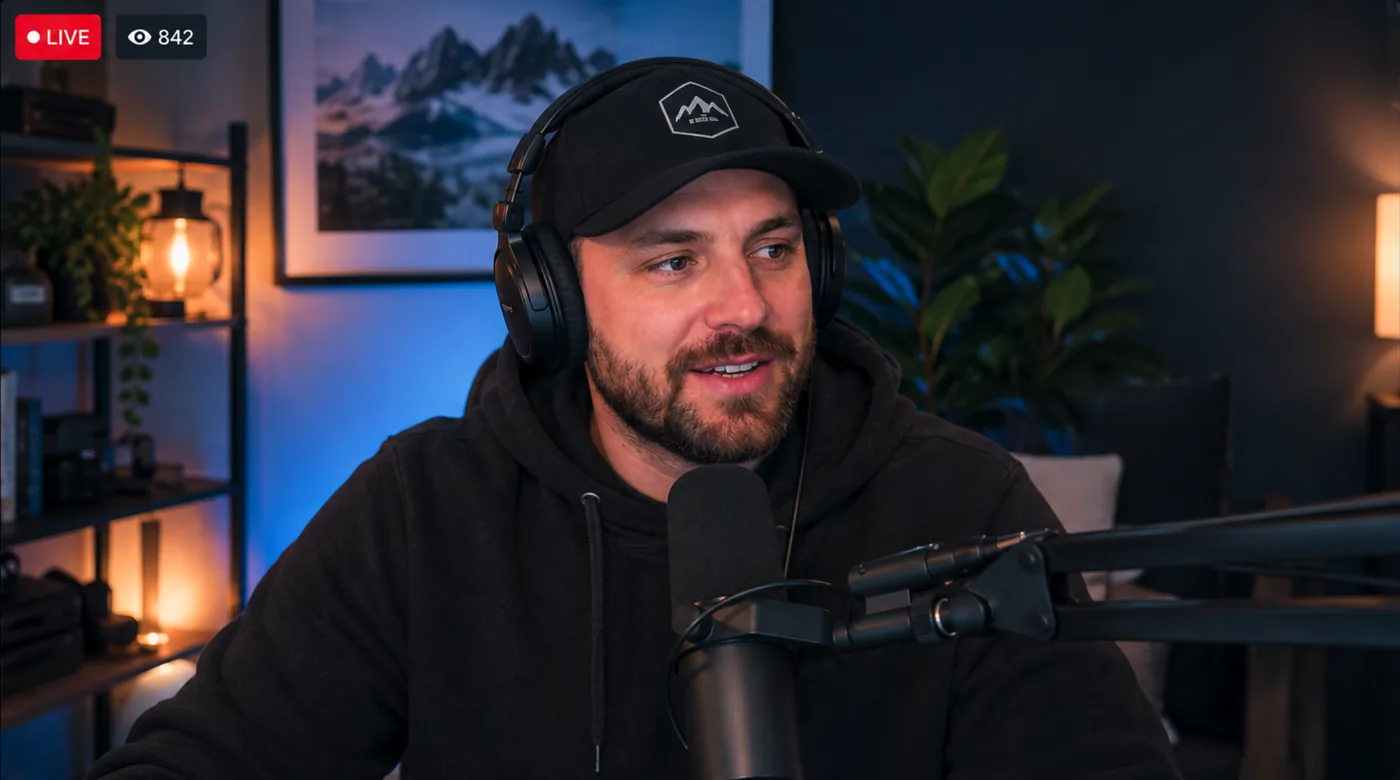
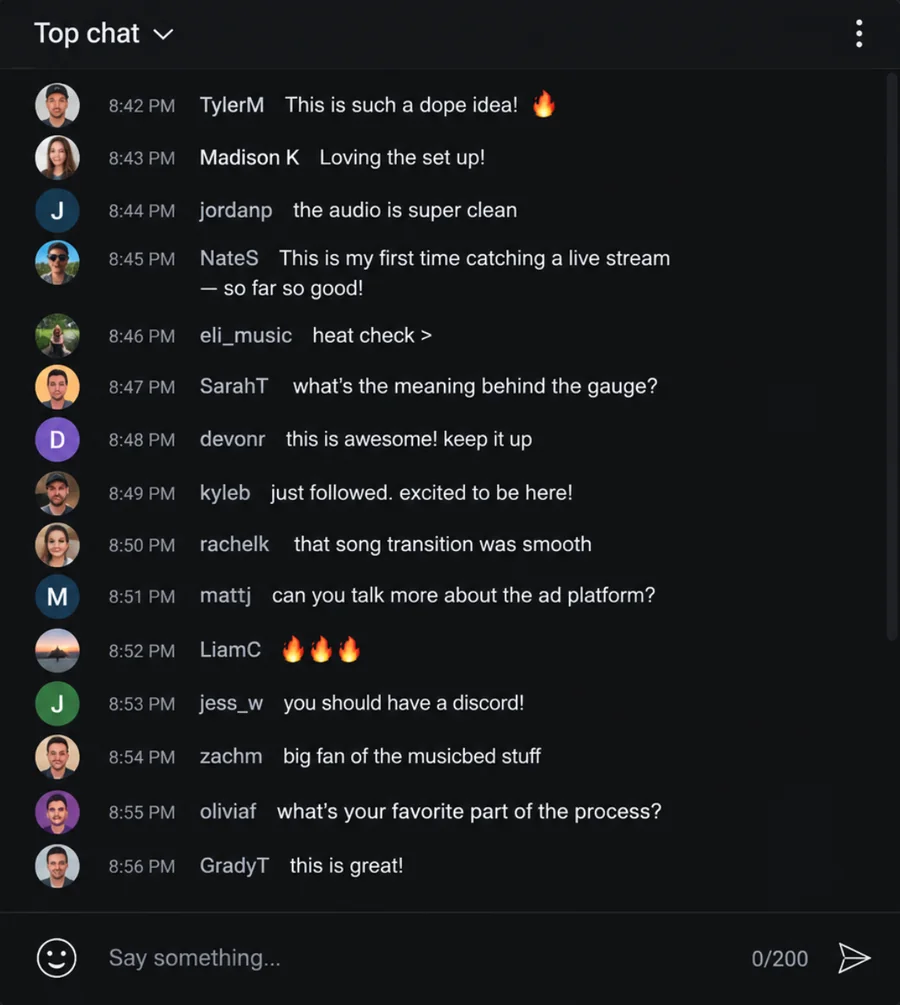
The stream is still your YouTube stream, playing in YouTube's own player via an iframe embed. Super Chats, memberships, watch time and ad revenue all count exactly as they do now.
How it works
- 1
Connect your YouTube channel once
In Settings → Integrations, paste a channel URL, handle or ID and confirm the correct channel. HeatCheck connects the channel, not an individual stream, so setup is one-time.
- 2
Set video and chat independently
Use the two switches in the dashboard's Live video panel to enable video, chat or both for this show. You can change either setting while the show is live.
- 3
Bring the show onto the page
Listeners watch, chat and use the interest slider in one place. Chat sits beside video on wide screens and directly below it, above every other block, on phones.
Everything else you get
HeatCheck is one page your audience opens, so these all run in the same place, during the same show.
Live video and chat
StarterEmbed your stream and live chat on your public page.
Stream overlays
ProAdd the meter, roll call, and polls to OBS, Streamlabs, or Streamyard.
Custom logo
StarterAdd your logo to your public page and stream overlays.
Roll call
StarterListeners check in, race for the podium, and build points, badges and streaks with your show.
Related pages
Show the live gauge, polls, roll call and more in OBS, Streamlabs or Streamyard. Choose seven shapes, eight widgets and one permanent URL for every show.
See a live 1–10 interest score from everyone in the room as they listen, giving you feedback in time to act. Free, with no account needed to vote.
Set it up
Connect a YouTube channel, choose whether new shows show its live video and chat, and troubleshoot the embedded player.
Use the live monitor, segment queue, audience features, show notes, and show controls while you are on air.
Find every account-level setting, what it changes, which role can see it, and whether it affects current or future shows.
Build a reusable broadcast graphic, choose its live widgets and appearance, and connect it to OBS, Streamlabs, or Streamyard.
See the full picture
This page covers one part of HeatCheck. The home page has a working demo of every part — the meter moving, a poll opening, the roll call filling up — with nothing to install.
Available on Starter
From $7.99 per month, billed yearly — up to 200 listeners at once. Every plan starts with a free trial.
Common questions
Which streaming services are supported?
YouTube is the only embedded source. HeatCheck connects a YouTube channel and uses YouTube chat. On other platforms, it works alongside the stream, with a stream overlay bringing HeatCheck onto the broadcast.
Do I have to reconnect for each show?
No. You connect a channel, not a stream, so the setup works for every show. Two dashboard switches provide per-show control of video and chat independently.
Can I show the chat without the video?
Yes. Chat only often suits audio-first shows: it avoids using bandwidth for a static video while keeping the audience conversation beside the interest slider.
Where does the video appear on my page?
At the top. The fixed order is live video, live chat, interest gauge, sponsor spotlight, roll call, suggestions and poll. Enabling video fills its reserved position without changing the relative order of anything else.
How does it work on a phone?
Chat sits directly below the video and above every other block on a phone. On a wide screen, it moves beside the video instead.
What if I stream to Twitch?
Use HeatCheck alongside Twitch with a stream overlay. It puts the meter, poll and roll call on the broadcast through OBS or Streamlabs, while the audience opens your HeatCheck page to vote. Most non-YouTube streamers use this setup, which needs no embed.
Ready to hear what your audience really thinks?
Claim your page and run your first show tonight. Set up your link, topics, audience tools and overlays from one dashboard.
No credit card · Live in under a minute · Log in