Sponsors & growth
9 min
Sponsors and ads
Build sponsor creatives, choose which ones are eligible to run, configure each show’s placement and rotation, and report clicks.
How ads work here
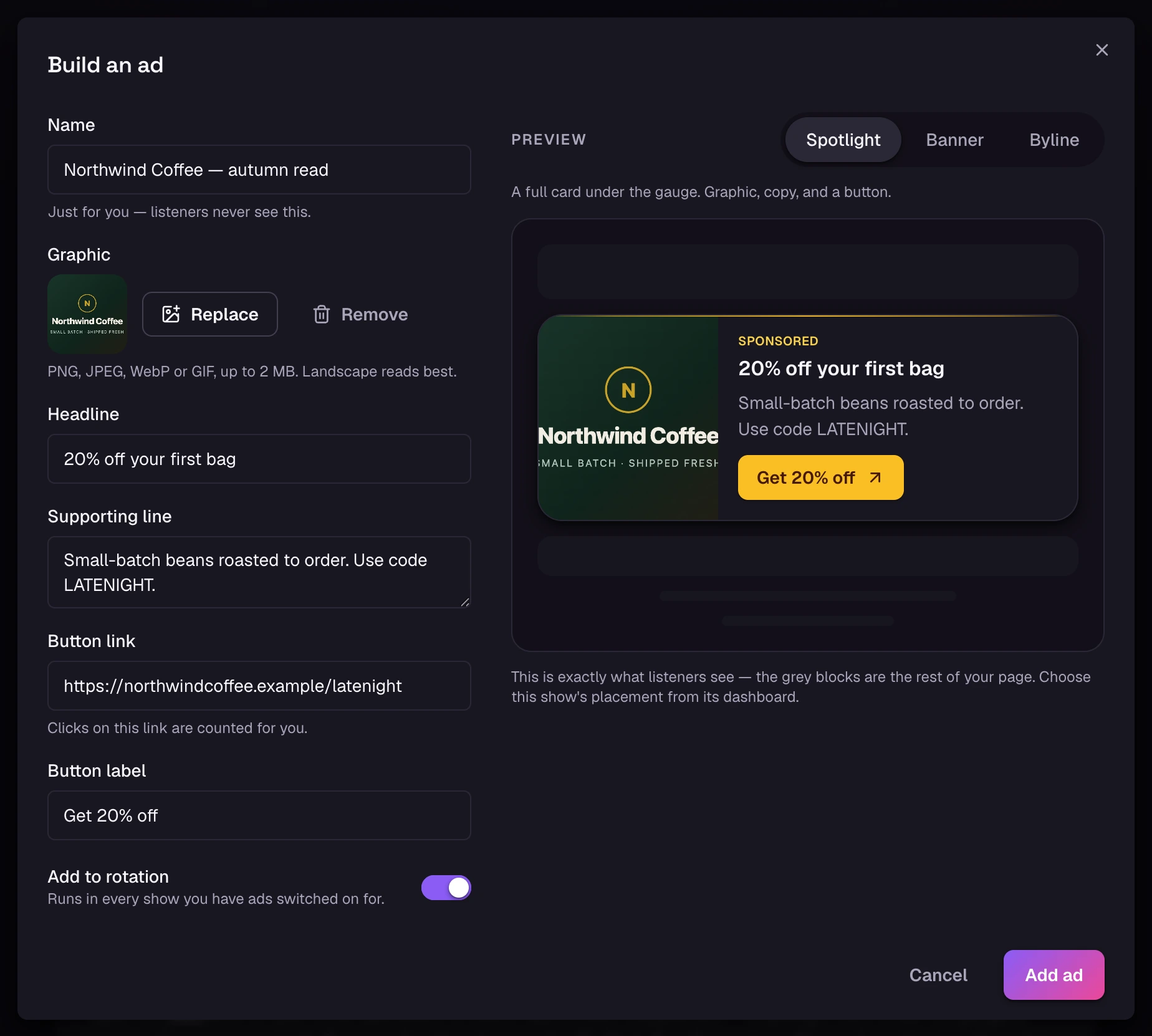
A HeatCheck ad is a sponsor creative on the live listener page. It can contain a graphic, headline, supporting line, and https button; the show’s placement determines how much of that content appears.
You build a library of creatives, mark the ones that are currently eligible as active, and shows with ads enabled rotate through that active set. Creatives are account-wide; whether ads run, where they appear, and how quickly they rotate are per-show settings. There are no campaign start or end dates.
Everyone sees the same ad at the same second
Create a creative
- 1
Add a graphic or headline
A creative must have at least one of these. Graphics can be PNG, JPEG, WebP, or GIF up to 2 MB; SVG is not accepted. A headline-only creative is also valid. Use artwork that remains legible at phone size.
- 2
Write the copy
Four fields, all short on purpose:
Name
80 characters
- Internal only — what you call this deal in your own records. Never shown to listeners.
Headline
80 characters
- The sponsor name or offer. Optional when the creative has a graphic.
Supporting line
200 characters
- Optional context such as a discount code or short qualification.
Button label
32 characters
- Optional custom call to action such as “Get 20% off.” A linked creative can use the placement’s default label instead.
- 3
Add the link
Add a Button link to make the creative clickable. It must be a complete https:// URL; http, javascript, data, and malformed URLs are rejected. A custom button label requires a link, but a link does not require a custom label.
Use whatever tracking parameters your sponsor gave you; they are preserved exactly.
You can keep up to 50 creatives. Old ones cost nothing to leave in the library. Deactivate rather than delete if you want to preserve their click history.
Turn a sponsor on
Each creative has an active switch. Active means “in the eligible rotation for every show that has ads enabled.” It does not turn ads on for a show by itself. New creatives start with Add to rotation enabled unless you switch it off before saving.
- One sponsor for this month? Activate one creative, leave the rest off.
- Three sponsors sharing the show? Activate all three; they rotate evenly.
- A read that only runs tonight? Activate before, deactivate after. Listener pages refresh the active set about every 30 seconds, including while their tab is in the background.
Active is account-wide, not per show
Choose the placement
Placement is a per-show setting, on the dashboard’s ads panel. It decides how loud the ad is, so you can match it to what you promised.
Spotlight
Most prominent
- A full card immediately after the gauge in the page order. On a wide layout it shares the gauge stage when space is available; on a phone it sits directly underneath.
Banner
Mid-weight
- A compact strip that takes priority over the gauge. With live video or chat it follows that media stage; otherwise it leads the voting widgets.
Byline
Least prominent
- A single sponsor credit near the page footer. Use it when the page only needs to acknowledge the partner.
Set the rotation speed
When more than one creative is active, the page rotates through them on a timer you set — anywhere from 10 seconds to 10 minutes, defaulting to 45 seconds.
- Two or three sponsors, a long show. Leave it at 45 seconds or slow it down. Each one gets plenty of impressions anyway.
- One sponsor. The setting does not matter — there is nothing to rotate to.
- Doing live reads. Slow it right down, so the card on screen is less likely to change during the read. To guarantee one sponsor stays visible, make it the only active creative for that period.
Rotation is not personalised, and that is a feature
What you can report back
Every button press is recorded. In Analytics, sponsor figures follow whatever you have scoped the page to — a date range, or a single show — so you can answer “how did we do on the night of the 14th” as well as “how is this deal going”.
Each creative also carries a lifetime click total, which is lifetime by definition and ignores the page’s date filter.
Clicks are anonymous
What to send a sponsor
- Clicks over the campaign, and clicks per show.
- The audience figure for the shows they ran on, with the caveat that HeatCheck records it when segments close and therefore treats it as a lower bound rather than a true peak.
- The interest score during the segment their read was in, if you named a segment for it. Present it as audience feedback during the read, not as proof that the ad caused the score.
Practical advice
Name creatives so future-you can read the list
“Acme — Q1 trial offer” beats “Acme”. The name is internal, so use it as a record of which deal this was.
Deactivate rather than delete
Deleting a creative loses its place in your history. A deactivated one costs nothing and keeps the record straight if a sponsor comes back.
Do not run a spotlight ad through the whole show
The spotlight shares the gauge’s stage on a wide screen and sits directly under it on a phone, so it remains one of the most visible blocks on the page. Consider using it during the read and changing to banner or byline afterwards. Placement can be changed mid-show from the dashboard.
Put the offer in the button, not the headline
Use the headline to identify the sponsor or offer, and the button to state the next action. A label such as “Get 20% off” is clearer than repeating the brand name.