On your stream
6 min
Add an overlay to Streamyard
Open the Streamyard callout as a correctly proportioned browser window, share that window, and keep it visible while broadcasting.
Why this is different
Streamyard has no browser source. There is no way to hand it a URL and have it composite a transparent layer over your video — that feature simply does not exist in the product.
So the overlay takes a different route: you open it as an ordinary browser window, and share that window into your broadcast the same way you would share a slide deck. Streamyard then places it beside your camera using its own layouts.
Two consequences follow, and both are worth knowing up front:
- There is no transparency. A shared window is a rectangle of pixels with no alpha channel. The overlay is therefore always painted on a solid background — that is not a limitation we chose, it is what a screen share is.
- There is one shape. The Streamyard callout is a tall panel at a 1 : 1.94 ratio, sized to land cleanly beside your video rather than be letterboxed into a corner of it.
This is a screen share, not a transparent layer
Build the overlay
- 1
Choose the Streamyard callout size
It is the only shape with a window target. Picking it changes the setup instructions and removes the backdrop choice — the shape is always solid, for the reason above.
- 2
Pick up to five widgets
The tall column suits the roll call and listener suggestions, with compact status widgets above them. Multiple-choice polls show all options, up to the six-option limit.
- 3
Choose a color mode that matches your set
Because there is no video behind it, the panel’s background is a real, visible design decision rather than an invisible one. Dark suits most streams; Light suits a bright studio or a paper-like look.
- 4
Save it
The setup card that appears is the window flow, not the browser source one.
Open the overlay window
- 1
Press “Open overlay window”
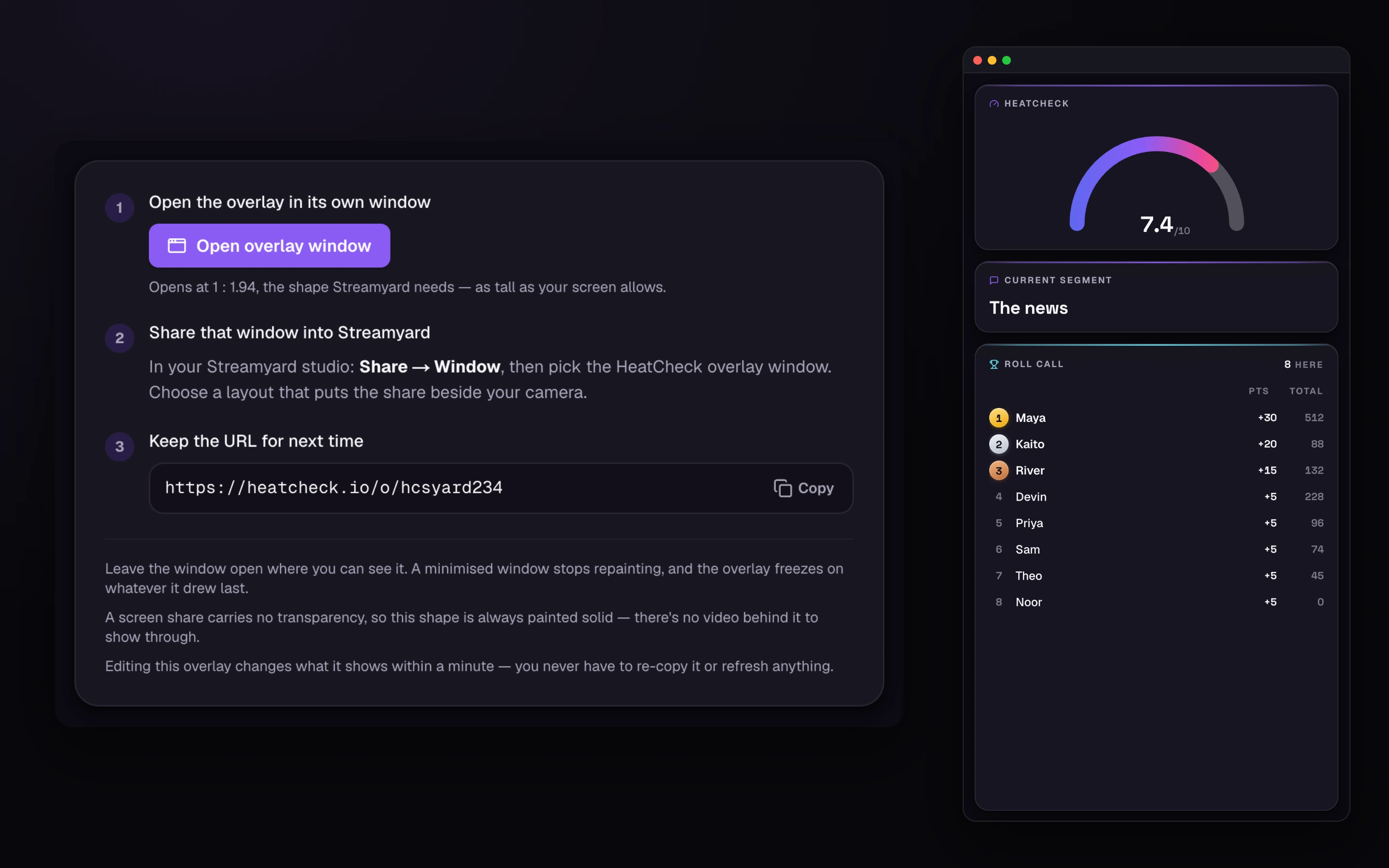
On the setup card. This opens the overlay in its own window, already at the right proportion — as tall as your screen allows, with the width worked out from there. Getting that ratio right by dragging a window corner is not something anyone can do accurately, least of all ten minutes before a show, so the button does it.
If nothing opens, your browser blocked it
Allow pop-ups for HeatCheck and press it again. Failing that, the setup card shows the URL. Open it manually and keep the same 557 : 1080 proportion; use 557 × 1080 when your screen has room. - 2
Leave it open and visible
Put it on a second monitor, or beside your Streamyard tab. Do not minimise it.
A minimised window stops repainting
Browsers stop drawing windows that are minimised. The share keeps going out, so what your audience sees is the overlay frozen on whatever it drew last — a stale gauge and a roll call that stopped updating, with nothing on your end to indicate it. Keep the window on screen.
During the show
Once it is shared, you do not need to touch it again. Editing the overlay in HeatCheck reaches the shared window within about a minute — so you can swap what it shows between segments without stopping the share or re-picking the window.
- Keep the window on screen, at whatever size it opened at. Resizing it is fine; minimising it is not.
- If you accidentally close it, press Open overlay window again — it reuses the same named window — then re-pick it in Streamyard’s share dialog.
When something looks wrong
The panel is frozen
The window is minimised, or the machine went to sleep. Restore it and it catches up on its own within a minute.
It is the wrong shape, or cropped
The window was resized by hand, or Streamyard’s layout is cropping the share. Re-open it with the button to reset the ratio, then try a different layout.
It has a white background and unreadable text
Reload the shared window and confirm the same URL opens in a normal tab. If the overlay content appears but the palette is wrong, edit its saved Color mode; Streamyard callouts always use a solid backdrop matched to that mode.
I want it transparent over my video
Not possible in Streamyard, by Streamyard’s design rather than ours. A transparent HeatCheck layer requires a compositor with a browser-source feature, such as OBS or Streamlabs.